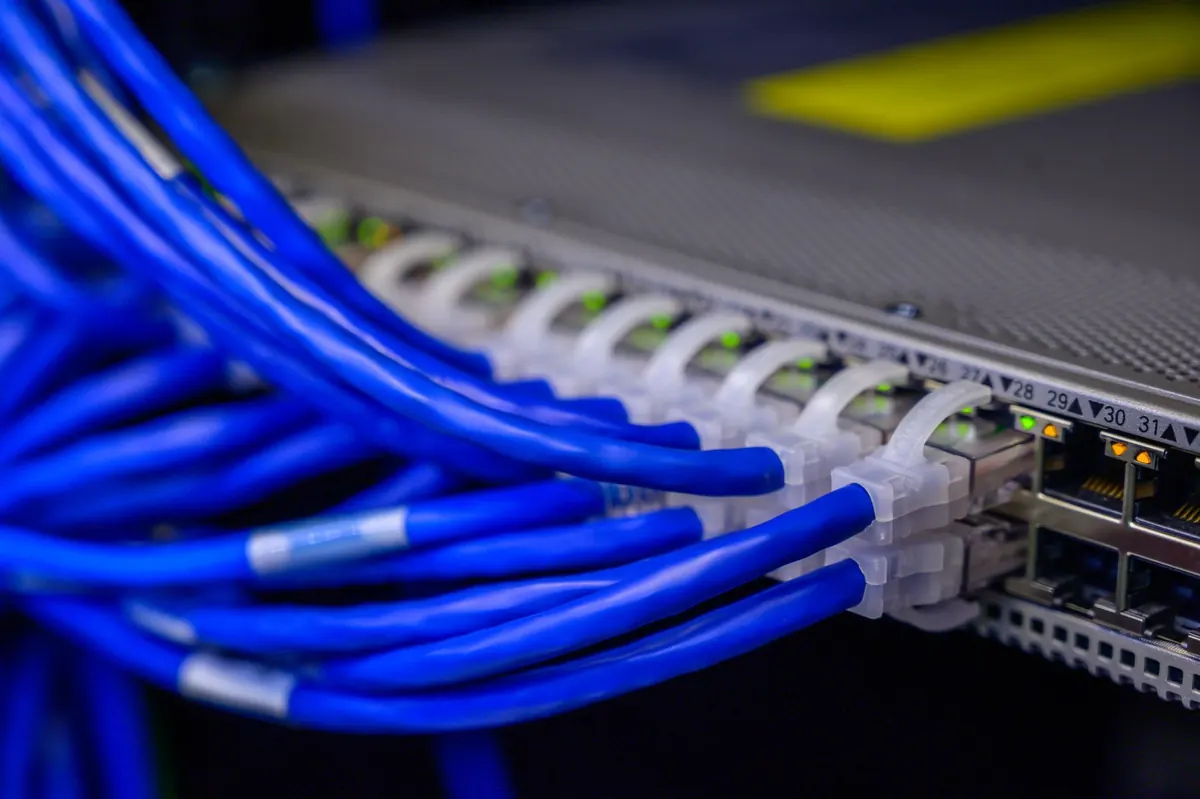
You can learn a lot about a network from what a guest laptop can see. On a flat network — one subnet, one broadcast domain, every port treated alike — that laptop often sees the office printer, the NAS share, and sometimes the switch's own login page. Nothing is broken. The network was simply never told which devices belong together.
VLANs fix that without new cabling. They let one switch act like several, so a guest phone, a smart TV, and an accountant's laptop can share the same hardware while living in separate worlds.
What a VLAN Actually Is
A VLAN is a broadcast domain you define in configuration rather than by which wall jack a device happens to use. The switch keeps a table mapping each port to a VLAN ID. A frame arriving on a port in VLAN 10 is forwarded only to other ports in VLAN 10. It reaches VLAN 20 only if a router, layer 3 switch, or firewall deliberately passes it across.
Two details matter in practice. Each VLAN usually gets its own IP subnet, because a broadcast domain and a subnet are effectively the same thing — VLAN 10 might be 10.10.10.0/24, VLAN 20 might be 10.10.20.0/24. And the switch alone does not route between them. Isolation comes almost free; connection is something you build on purpose, with rules.
VLAN IDs run from 1 to 4094. VLAN 1 is the default and should not carry production traffic. A few IDs in the 1000s are reserved by certain vendors, so many teams stay in the 2–999 range to keep numbering simple.
Why Segmentation Pays Off
Every device on a subnet shares one broadcast domain. ARP requests, mDNS chatter from phones and printers, and discovery traffic all reach every port. That is fine for twenty devices and noisy at two hundred; smaller domains mean less time spent processing frames nobody asked for.
Security is the bigger win. If a cheap camera or smart plug is compromised, its reach should end at its own segment. Flat, it can scan your file server. Segmented, with a default-deny policy between VLANs, it reaches the internet and nothing else.
It also makes policy readable. "Guest can reach the internet only" is a sentence a firewall can enforce and a colleague can understand. "Whatever is plugged into these twenty ports can reach everything" is not a policy — it is an absence of one.
Guest, IoT, and Office: Choosing Your Segments
Office
Laptops, desktops, VoIP phones, and file servers. Full or near-full access to internal services, plus internet.
Guest
Visitor phones and laptops. Internet only, with client isolation so guests cannot see each other, and a bandwidth cap so one device does not crowd the uplink.
IoT and everything else
Cameras, televisions, thermostats, speakers, and usually printers. These devices update rarely, ship with old firmware, and are the hardest to patch. Give them internet access only where the vendor cloud requires it, and block everything aimed at the office segment.
Management
The admin interfaces of your switches and access points. Reach them from one trusted admin host, not from every desk.
Printers deserve their own note. They are a classic pivot point, often exposing file shares on plugged-in USB drives. Putting them in the IoT VLAN and allowing only printing protocols from the office is a reasonable compromise.
Trunking in Plain English
Ports come in two flavors. An access port belongs to exactly one VLAN, and the device plugged into it has no idea VLANs exist. Your desktop connects to an access port in VLAN 10 and sends ordinary Ethernet frames; the switch adds and strips tags as needed.
A trunk port carries several VLANs at once. Each frame gets a small 802.1Q tag — four bytes — holding the VLAN ID, so the device at the other end knows where the frame belongs. Trunks are what you use between switches and from a switch to an access point, router, or firewall that handles multiple segments.
Three habits keep trunks out of trouble:
- Move the native VLAN off VLAN 1. Untagged frames on a trunk land in the native VLAN, and a mismatch between two ends quietly puts traffic in the wrong segment.
- Allow only the VLANs each trunk needs. There is no reason to permit all 4094 on a link to a single access point.
- Match both ends. A port configured as a trunk on one side and an access port on the other is a silent outage waiting to be diagnosed.
Tagging mistakes cause far more outages than failed hardware. When a device in a VLAN cannot reach anything, check the trunk before you check the cable.
A Worked Example: Four VLANs, One Switch
Here is a layout you can copy: one 24-port switch, one firewall or router, one wireless access point.
- Pick IDs and subnets. VLAN 10 office, 10.10.10.0/24. VLAN 20 guest, 10.10.20.0/24. VLAN 30 IoT, 10.10.30.0/24. VLAN 99 management, 10.10.99.0/24. Write this table down; it is the document everyone will ask you for.
- Create and name the VLANs on every switch. Use "office," not "VLAN10." Names survive staff changes.
- Assign access ports. Desk jacks to VLAN 10, camera drops to VLAN 30, and the uplink to the firewall becomes a trunk.
- Configure the access point link as a trunk allowing VLANs 10, 20, 30, and 99, with the access point's own address in VLAN 99 and separate SSIDs mapped to the other three.
- Handle DHCP. Either create a scope per VLAN on the firewall, or set a DHCP relay on the switch pointing to a central server. Without a relay, clients on a new VLAN get no address and look broken.
- Route, then restrict. Turn on inter-VLAN routing at the firewall, set the default to deny, and add rules one at a time: office to internet, guest to internet with private ranges blocked, office to IoT on printing ports only, IoT to the specific destinations its devices need, and management reachable solely from your admin machine.
- Test both halves. From a guest device, try to open the printer's web page — it should fail. From an office laptop, print — it should work. If both happen, you have segmentation and usability at the same time.
Common Mistakes to Avoid
- Leaving
Photo: Brett Sayles / Pexels